Quick Sale
Record a paid sale and create a receipt.
Complete a Quick Sale and review the receipt
Recorded in Practice — Sample Data. Use Practice to follow along; use Business only when entering your own records.
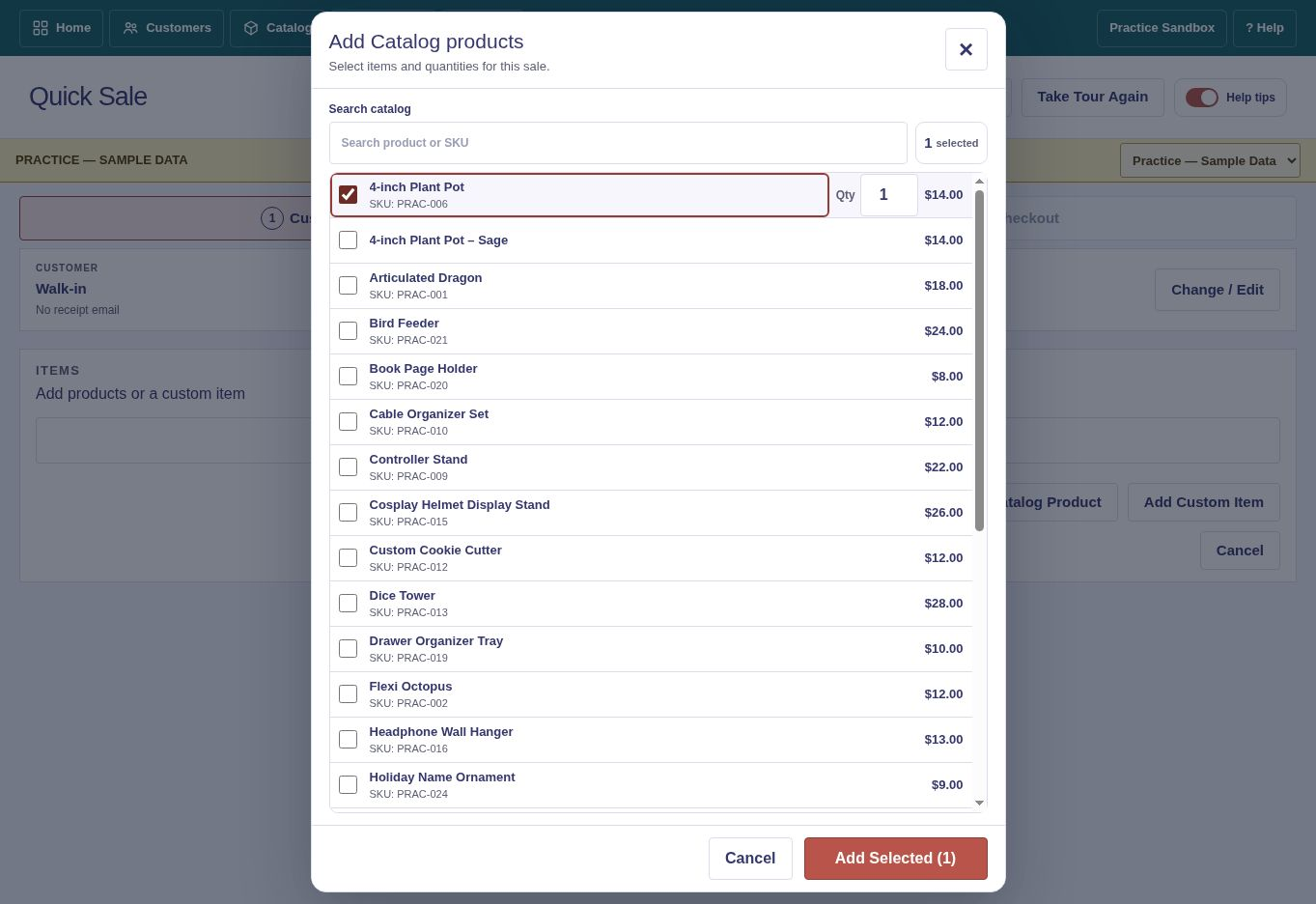
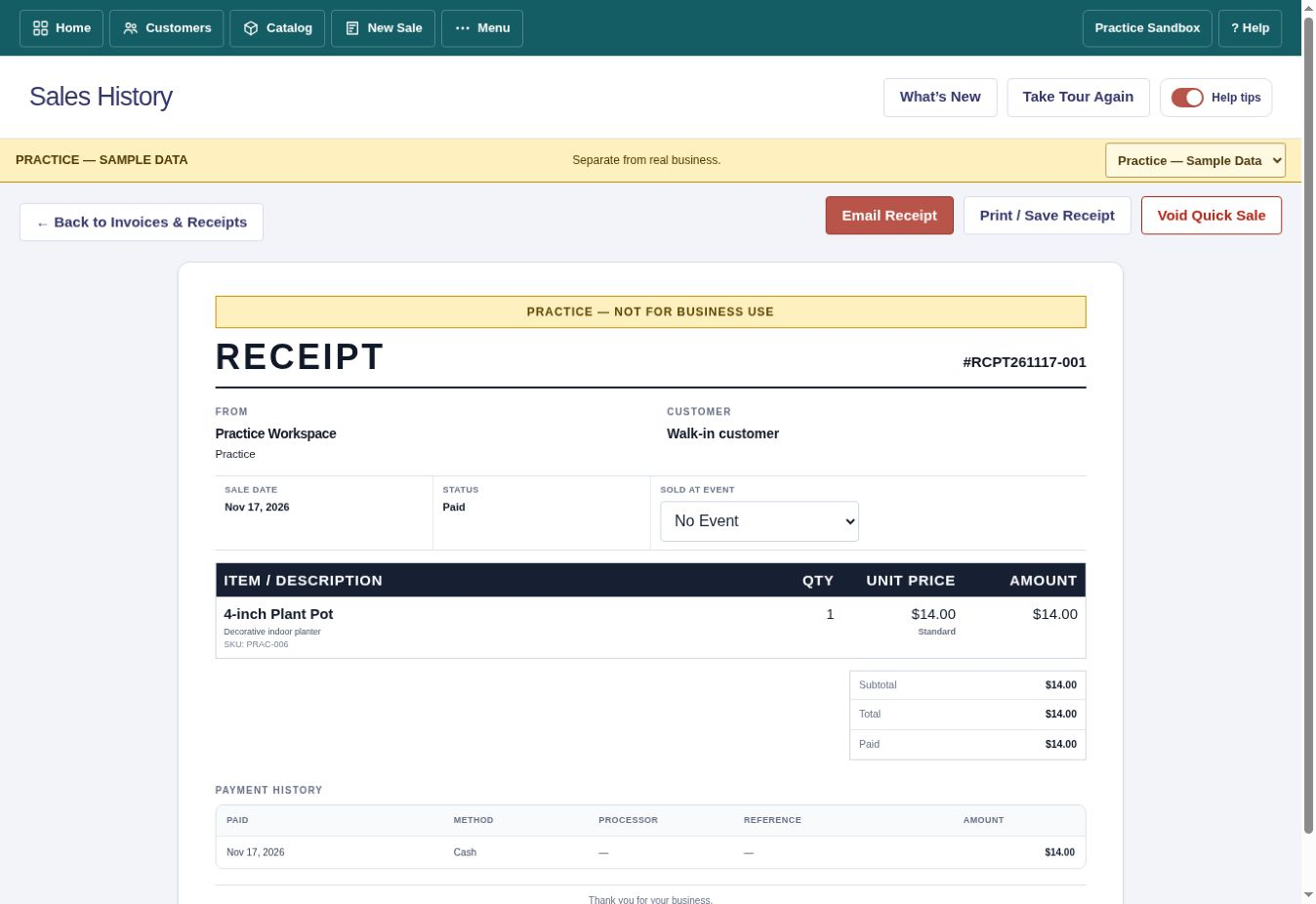
Make a Quick Sale
- Choose New Sale → Quick Sale.
- Choose Catalog items or add a permitted custom item.
- Adjust quantity, price, discount and taxes as needed.
- Select a payment method and complete the sale.
A Customer is optional for walk-in sales.
Send a receipt
Open the completed receipt to print, save PDF or email it. You can enter a one-time email address.
Sell offline
Open Quick Sale while online before a show. Offline sales queue on the device and sync after reconnection. Receipt emails are attempted after successful sync. Offline selling guide.
Correct a completed sale
Use the available Void/Refund workflow. Card-processor refunds may require separate confirmation in the processor account.