Catalog & Pricing
Add products, set prices and track stock.
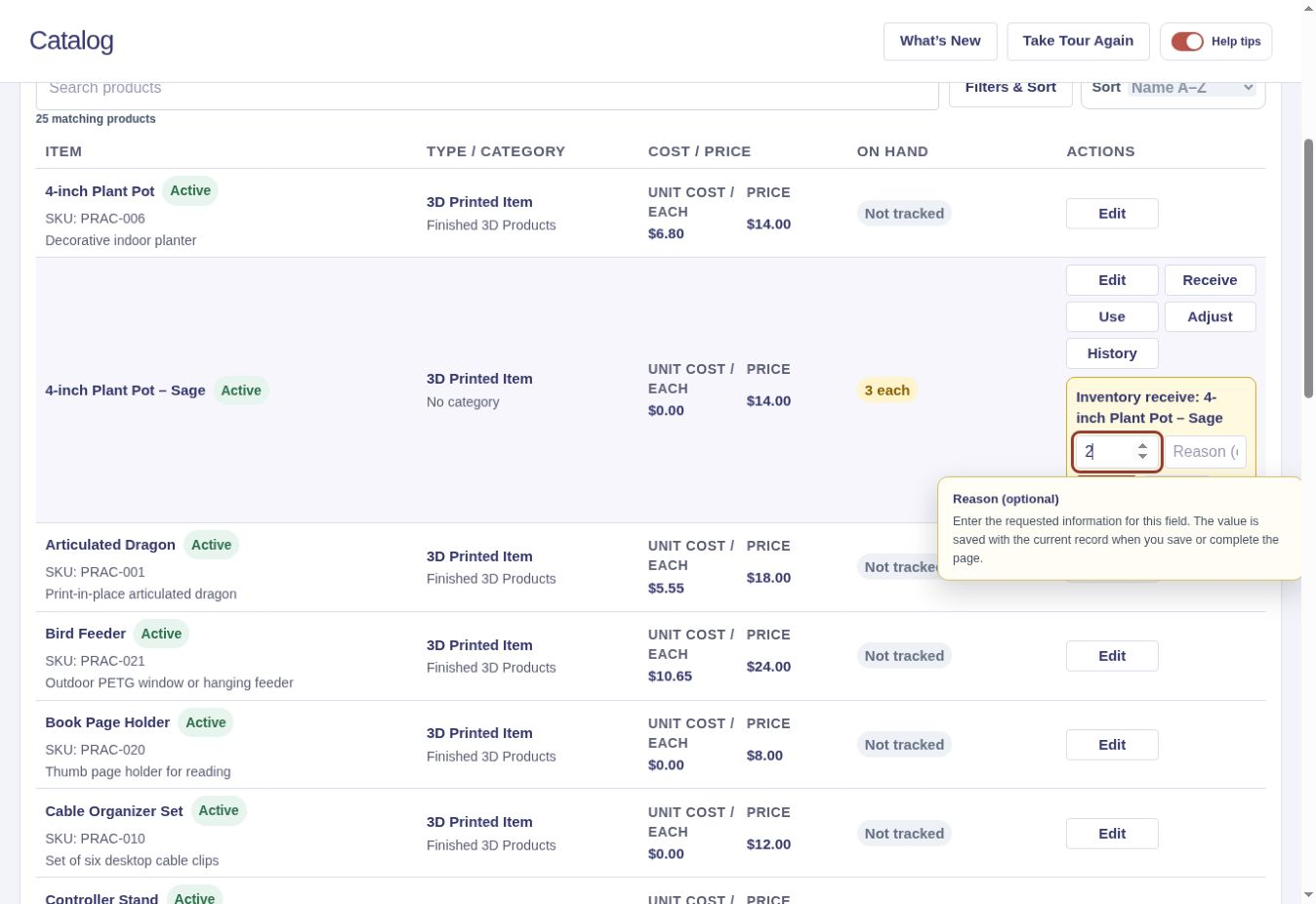
Receive inventory for a saved item
Recorded in Practice — Sample Data. Use Practice to follow along; use Business only when entering your own records.
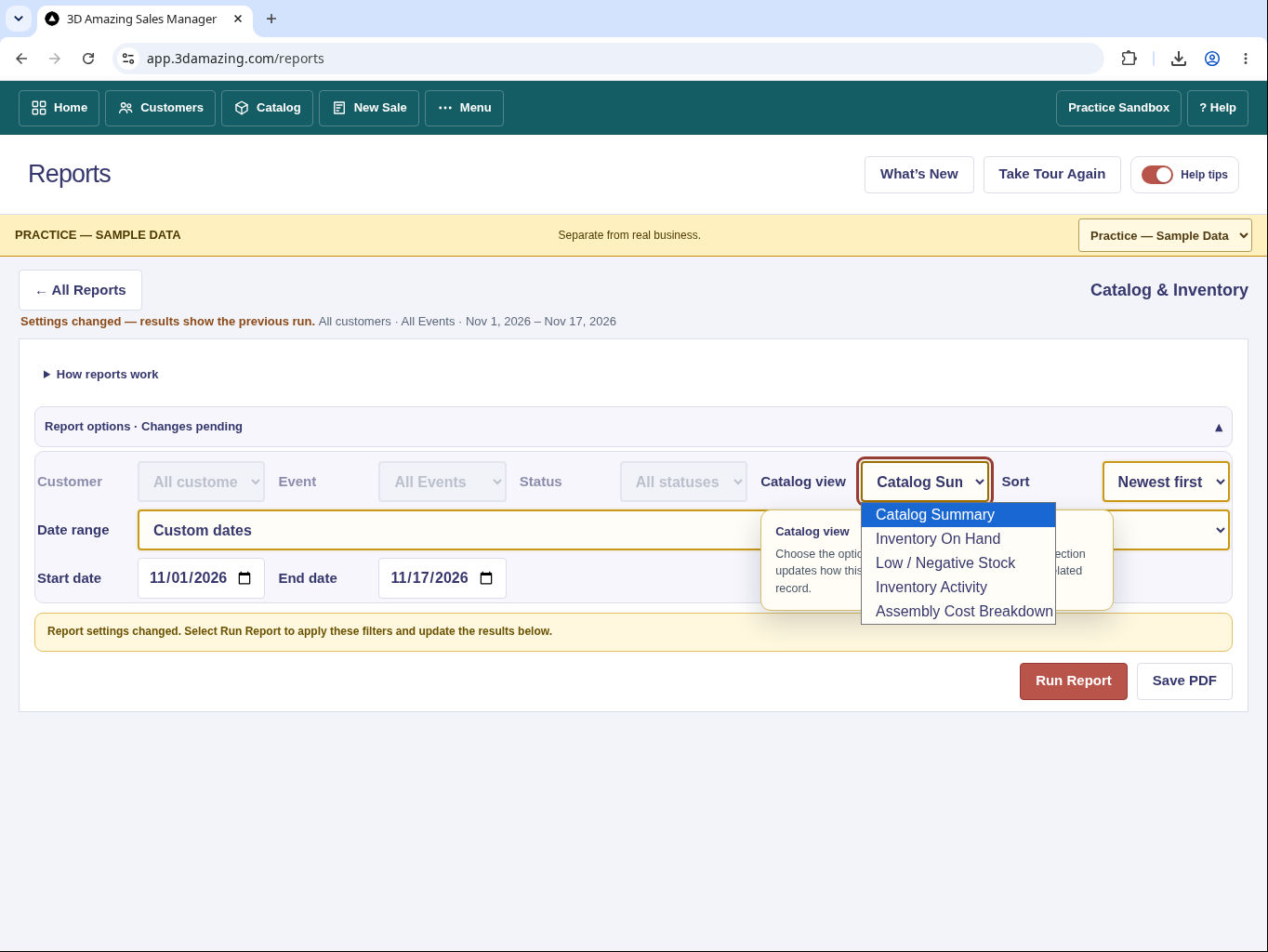
Review low-stock settings
Recorded in Practice — Sample Data. Use Practice to follow along; use Business only when entering your own records.
Add a Catalog item
- Open Catalog → + Add Catalog Item.
- Choose 3D Printing, Handmade Products, Buy & Resell or another item type.
- Fill in fields marked Required.
- Select Save Item.
See the step-by-step guide and video.
Type and Category
Type describes the item. Category is an optional grouping and does not affect costing. An Assembly is a Type, not a Category.
Optional costing Tools
When adding a 3D printed item you make, choose Tools in the Catalog editor header to open the electricity calculator. For eligible Handmade Products, Tools opens the optional batch-cost and equipment-time calculators in a separate dialog; the main Save Item action stays in the editor. Apply the calculated cost to the item, close Tools, and select Save Item to keep the result. Buy & Resell items use purchase cost and do not need print-time costing.
Component quantities can retain up to four decimal places when needed. Selling prices and ordinary currency inputs continue to display two decimal places.
Costs and selling prices
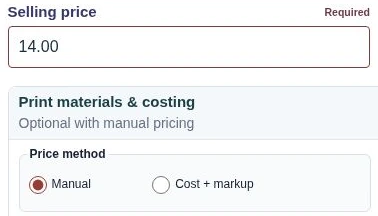
Buy & Resell uses purchase cost, even for finished 3D prints. Items you make yourself can use material, labor and equipment costs. Choose Manual price or Cost + markup as appropriate.
Receive stock for a saved item
The videos use Practice — Sample Data. Follow along in Practice to try the examples, or use Business to enter your own records.
Inventory
Save Item saves item details; it does not add stock. Use Receive, Use, Adjust or Build for inventory transactions.
Assemblies
Choose Assembly and add existing Catalog components with quantities. In Assembly components & pricing, tap Find Catalog component to browse available items even before typing. The list opens beneath the field, showing up to 12 items in name order. Scroll the short list or select Show 12 more items to browse further. Typing a name, Type, Category or SKU instantly narrows the same list. Tap the correct item—there is no second dropdown. You will see Selected: with that item’s name. Set the quantity and choose Add component. To close the unselected list, choose Hide list. Building an Assembly uses the added components.
For 3D printed items, Find material or component in Print materials & costing provides the same browse-and-search control, limited to eligible materials and supplies.
Imports and backups
Customer/Product CSV exports are basic lists, not full backups. Use Full Business Backup in Data Tools for complete backup and restore workflows.