Quotes
Prepare an estimate before creating an invoice.
Convert a saved Quote to an Invoice
November 18 update: The video below was recorded before the recipient-conversion choices were reorganized. See the current steps below; the video dialog and screenshots may look different.
Recorded in Practice — Sample Data. Use Practice to follow along; use Business only when entering your own records.
Create a Quote
- Choose New Sale → Quote.
- Select a Customer and add items.
- Review pricing, discounts and notes.
- Save the Quote.
Send or print
Open a saved Quote to print, save PDF or email it.
Convert to Invoice
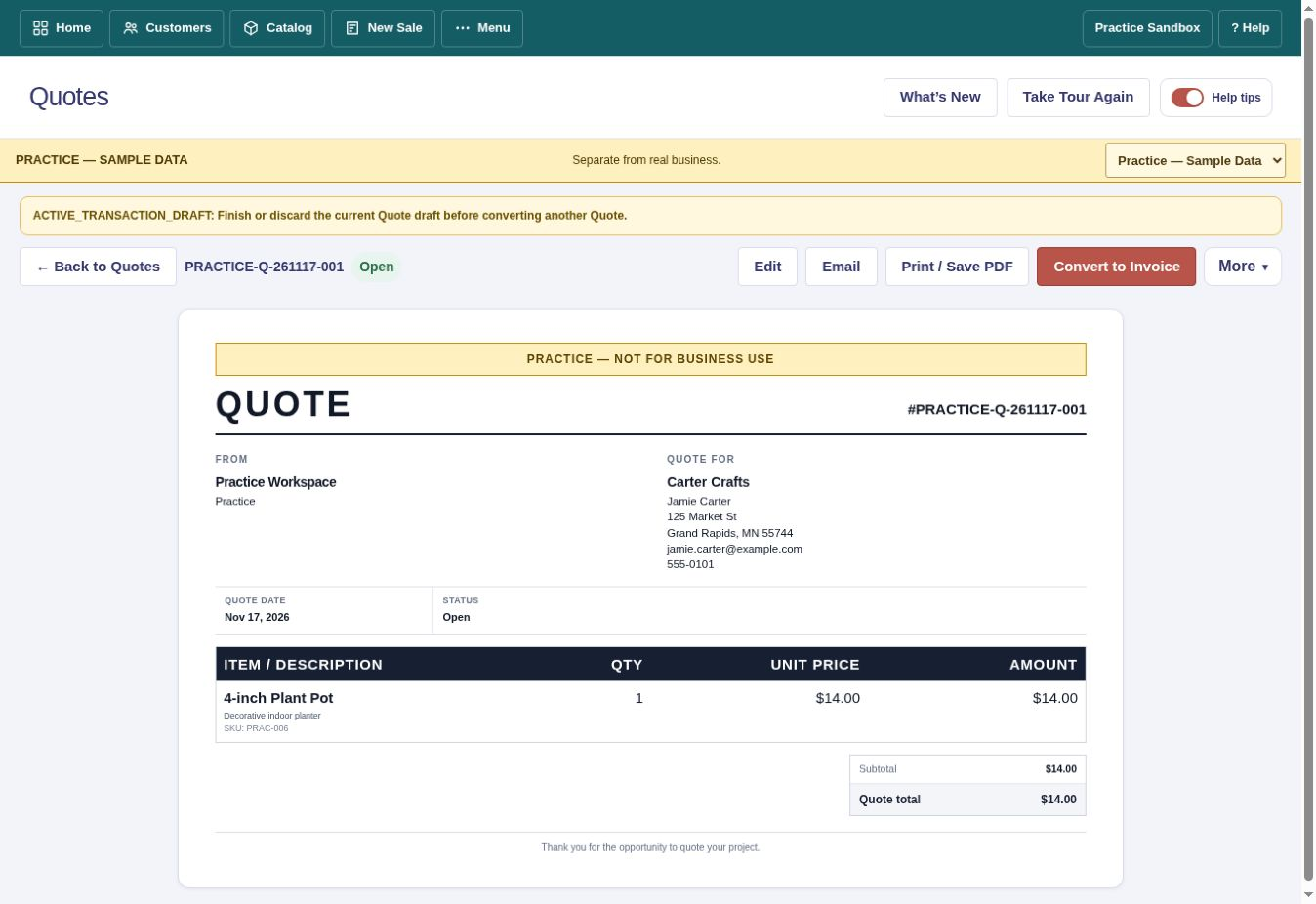
Open a saved Quote and choose Convert to Invoice. For a one-time Quote recipient, the compact dialog shows the recipient name and email above Select Customer. Choose one of these actions:
- To save the person named on the Quote as a new Customer, choose Create Customer from Quote & Convert immediately below the Customer dropdown.
- To associate the Invoice with someone already saved, choose an Existing Customer and select Convert with Selected Customer.
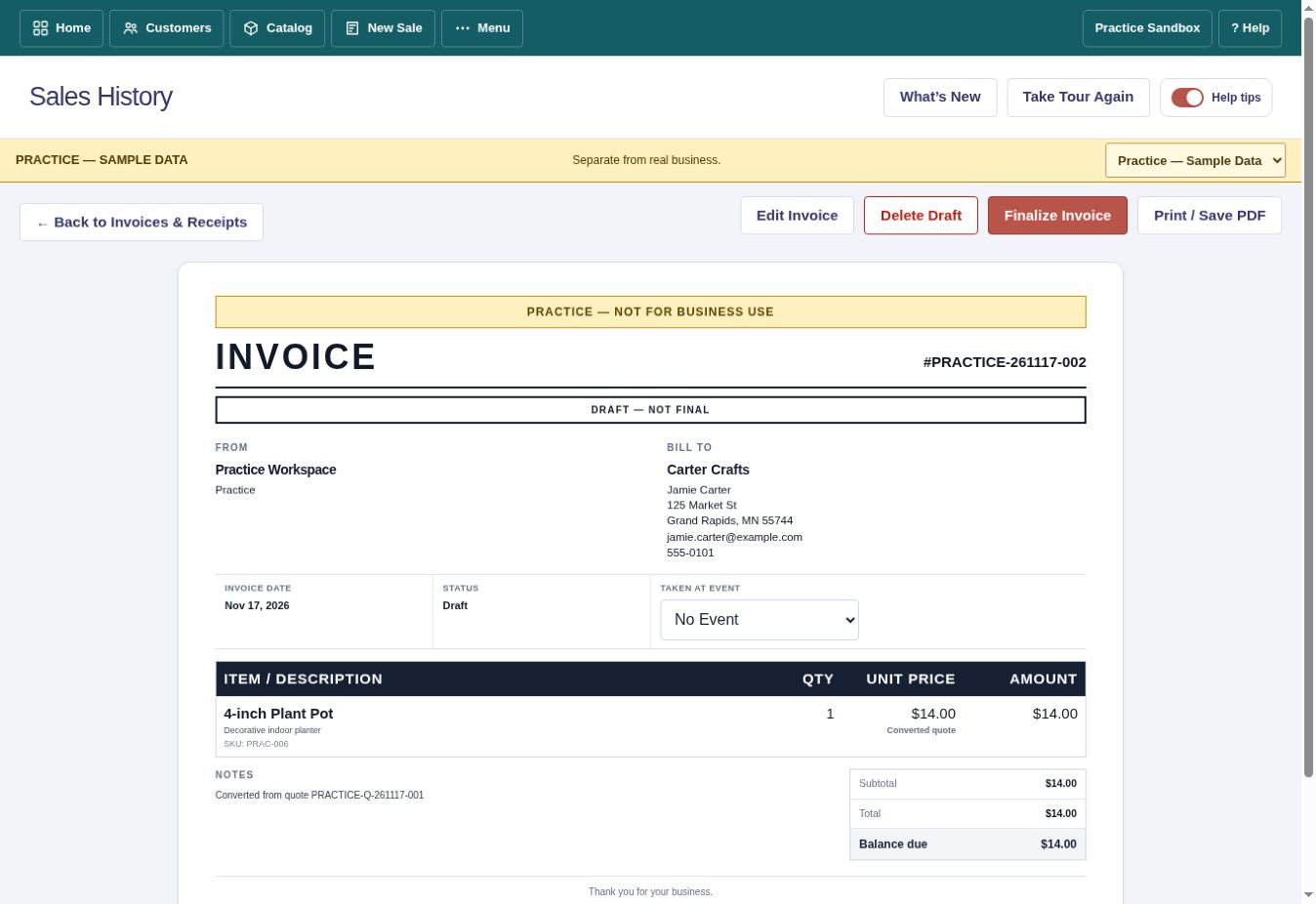
If an existing Customer appears to match the Quote recipient, the dialog warns you before creating a duplicate. If an Invoice conversion fails after a Customer was created, use that saved Customer to retry. After successful conversion, the original Quote stays linked and read-only.
Converted a Quote by mistake? If its Invoice is still an unused Draft, open that Draft in Sales History and choose Undo Conversion & Delete Draft. The Quote returns to Open, with its items and recipient still present. The saved Customer is retained and the deleted Invoice number is reserved. If there is payment, inventory, fulfillment or other protected activity, undo is blocked.
Find and manage Quotes
Open Quotes or Global Search. Editing, voiding and deleting are restricted according to document history.